Evernote Editor Preview

Adds a preview option to Evernote Editor


Dovrai installare un'estensione come Tampermonkey, Greasemonkey o Violentmonkey per installare questo script.

You will need to install an extension such as Tampermonkey to install this script.

Dovrai installare un'estensione come Tampermonkey o Violentmonkey per installare questo script.

Dovrai installare un'estensione come Tampermonkey o Userscripts per installare questo script.

Dovrai installare un'estensione come ad esempio Tampermonkey per installare questo script.

Dovrai installare un gestore di script utente per installare questo script.

(Ho già un gestore di script utente, lasciamelo installare!)

Dovrai installare un'estensione come ad esempio Stylus per installare questo stile.

Dovrai installare un'estensione come ad esempio Stylus per installare questo stile.

Dovrai installare un'estensione come ad esempio Stylus per installare questo stile.

Dovrai installare un'estensione per la gestione degli stili utente per installare questo stile.

Dovrai installare un'estensione per la gestione degli stili utente per installare questo stile.

Dovrai installare un'estensione per la gestione degli stili utente per installare questo stile.

(Ho già un gestore di stile utente, lasciamelo installare!)

Autore
Amourspirit
Installazioni giornaliere
0
Installazioni totali
26
Valutazione
0 0 0
Versione
1.0.0
Creato il
29/03/2019
Aggiornato il
29/03/2019
Dimensione
49,3 KB
Licenza
MIT
Applica a

Evernote Preview Userscript

A bigger view

https://img.shields.io/badge/Install-Install%20user%20script-brightgreen.svg https://img.shields.io/badge/Source-View%20Source%20Code-green.svg GitHub package.json version

THE WHAT

Evernote Preview is a userscript that gives a option to veiw your note in full screen preview mode.

Adds a new Full Screen Preview button fs17.png to the menu.
editor-menu-fsp-btn.png

When the mouse is placed over the button it looks like the following.

button-mouseover.png
Clicking on button puts the note on the page into full screen preview.
This is preview and it is not possible to edit in preview mode.
When in full screen view just press the esc key to exit full screen view.

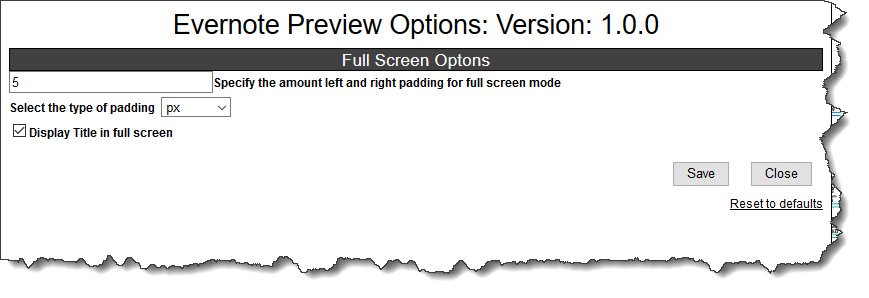
Options can be set by clicking on the Evernote Preview Options:
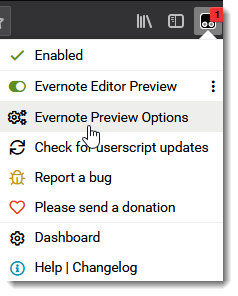
options-menu.png
options.png

THE WHERE

https://img.shields.io/badge/Install-Install%20user%20script-brightgreen.svg https://img.shields.io/badge/Source-View%20Source%20Code-green.svg

Related

Evernote%20Fullscreen-View%20notes%20Fullscreen-blue TinyMCE%20for%20Evernote-Get%20Extended%20Evernote%20Editor-informational.svg

Authors

Paul Moss

Donate

Making a donation is an act of generosity. Your support, however modest it might be, is necessary. paypal.png donate

Screen shots

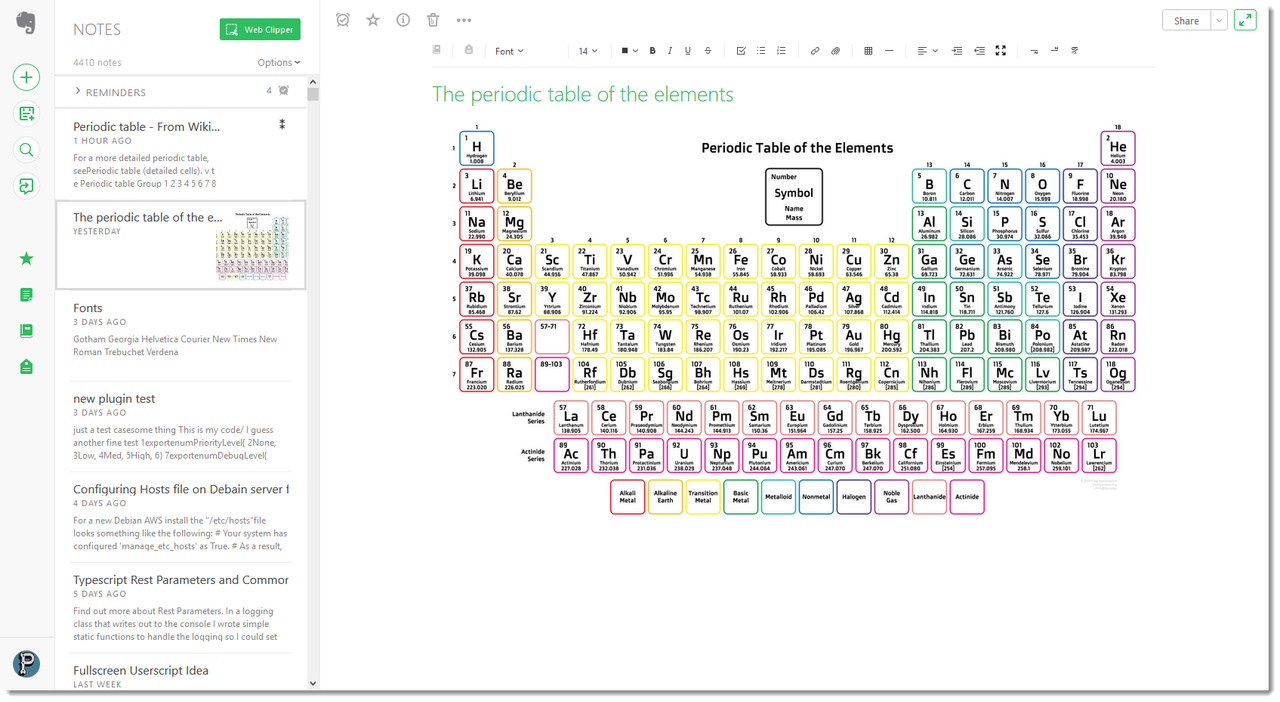
Note in normal edit view.
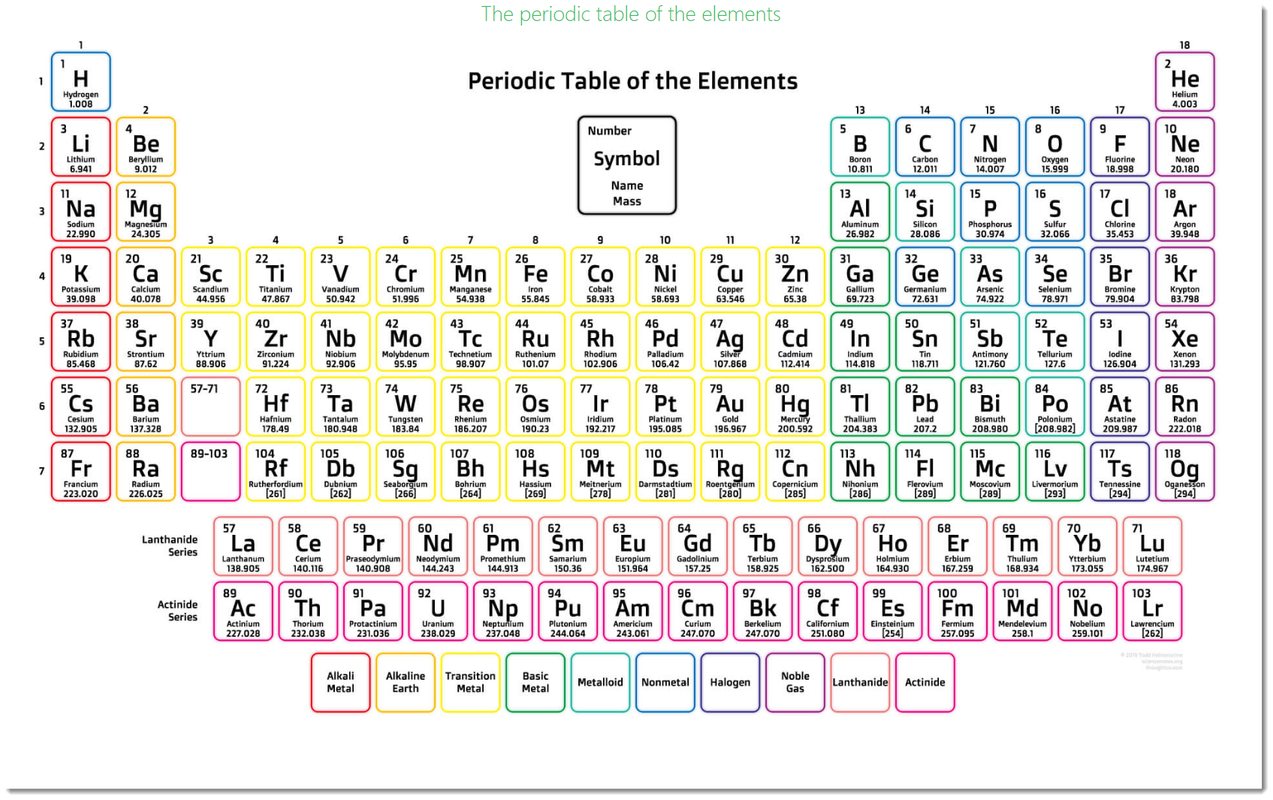
evernote-editor-pte.png Note in full screen:
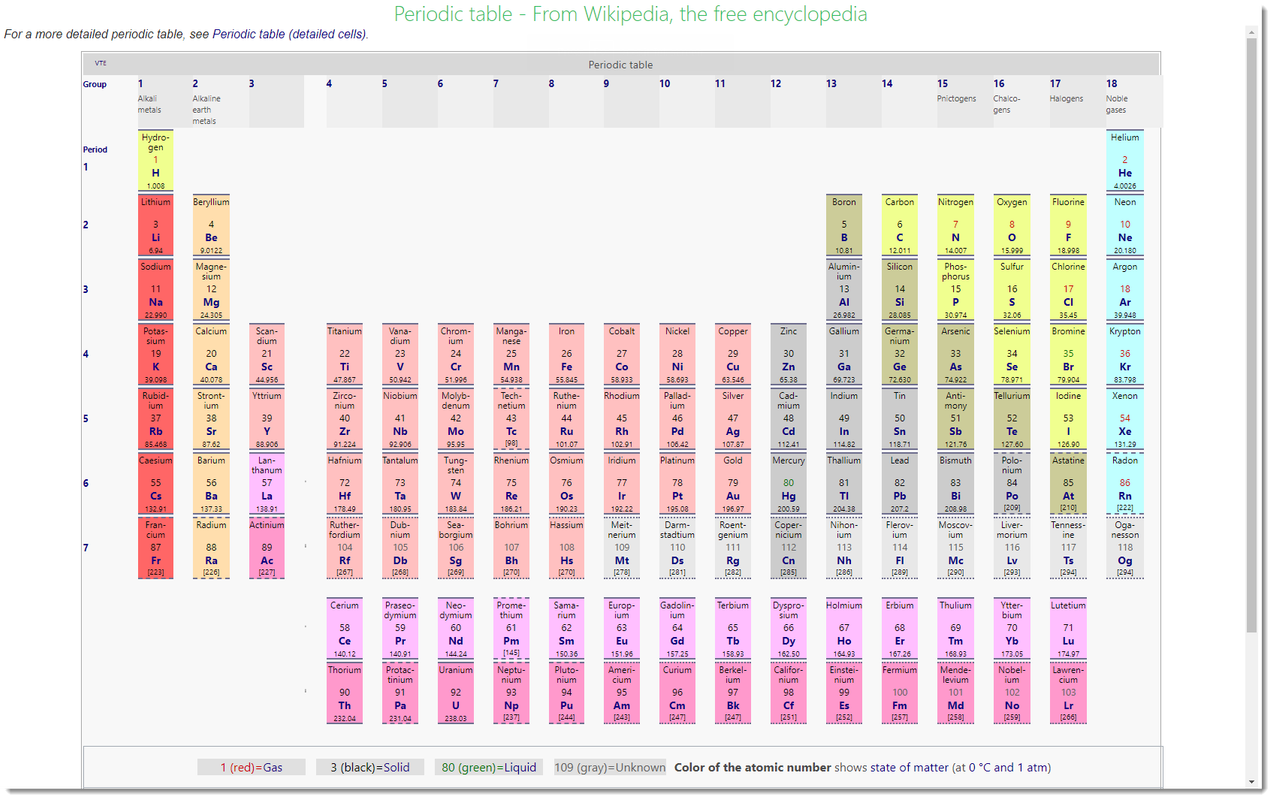
fullscreen-default-pte.png

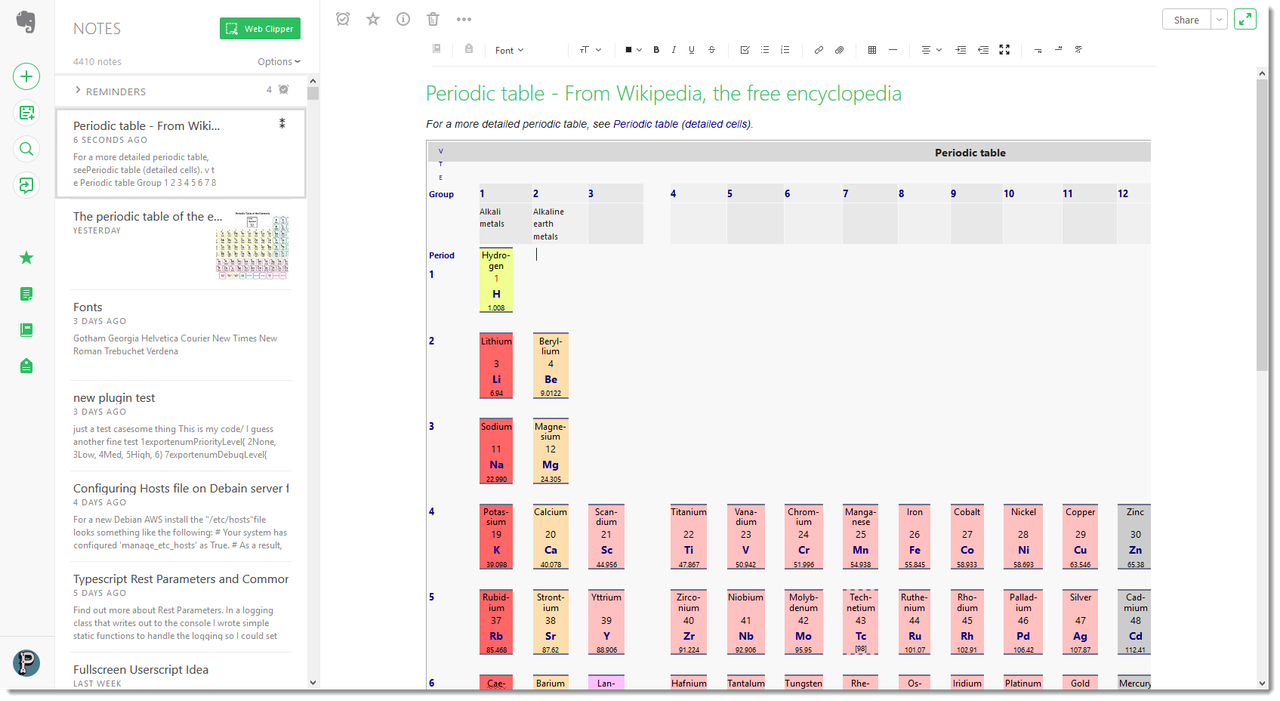
Note in normal edit view.
evernote-editor-wpte.png Note in full screen:
fullscreen-default-wpte.png Note in full screen with title turned off and padding set:
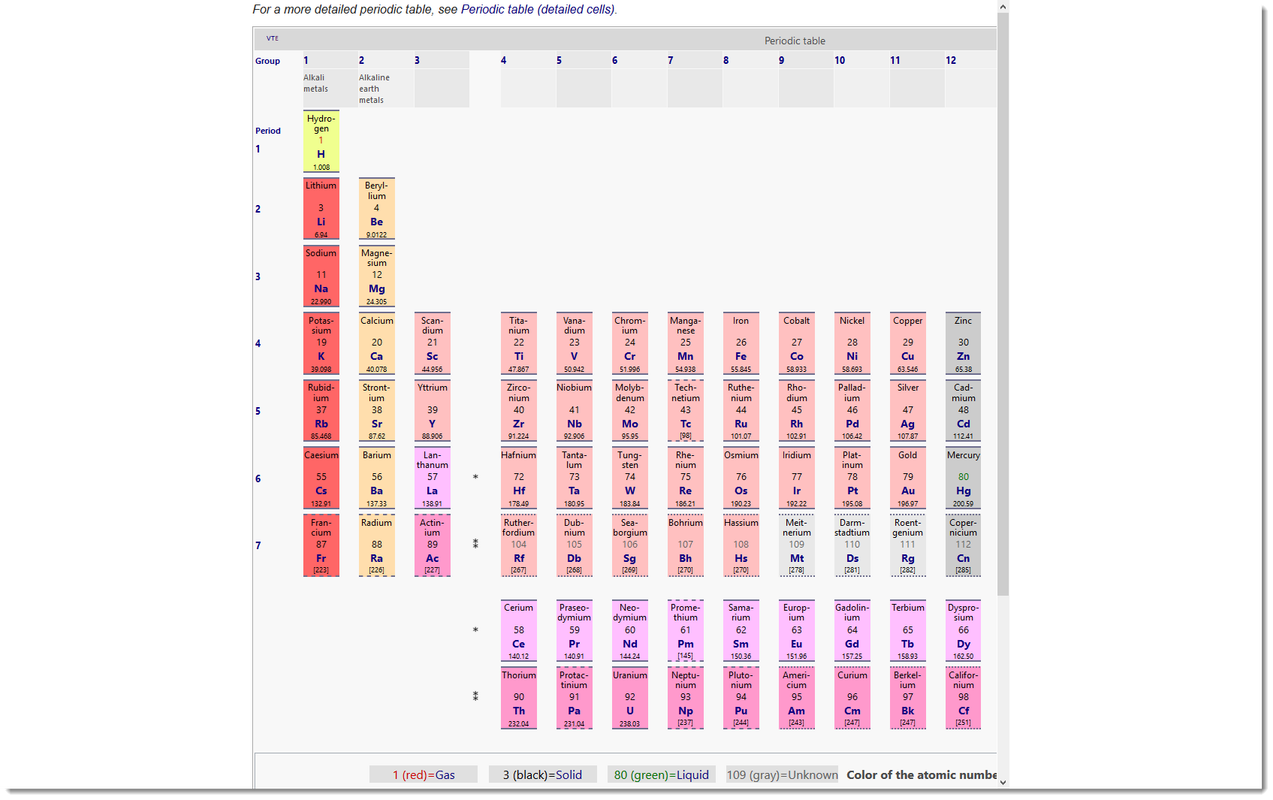
fullscreen-padding-no-title.png

Uses