AO3: Script Sync

Sync AO3 userscript settings across devices via Google Sheets. View, export, import, and delete data stored by any userscript.

You will need to install an extension such as Tampermonkey, Greasemonkey or Violentmonkey to install this script.

You will need to install an extension such as Tampermonkey to install this script.

You will need to install an extension such as Tampermonkey or Violentmonkey to install this script.

You will need to install an extension such as Tampermonkey or Userscripts to install this script.

You will need to install an extension such as Tampermonkey to install this script.

You will need to install a user script manager extension to install this script.

(I already have a user script manager, let me install it!)

You will need to install an extension such as Stylus to install this style.

You will need to install an extension such as Stylus to install this style.

You will need to install an extension such as Stylus to install this style.

You will need to install a user style manager extension to install this style.

You will need to install a user style manager extension to install this style.

You will need to install a user style manager extension to install this style.

(I already have a user style manager, let me install it!)

Skaber
BlackBatCat
Daglige installationer
6
Installationer i alt
12
Bedømmelser
2 0 0
Version
1.0.3
Oprettet
05.03.2026
Opdateret
08.05.2026
Size
71,3 kB
Licens
MIT
Gælder for

AO3: Script Sync

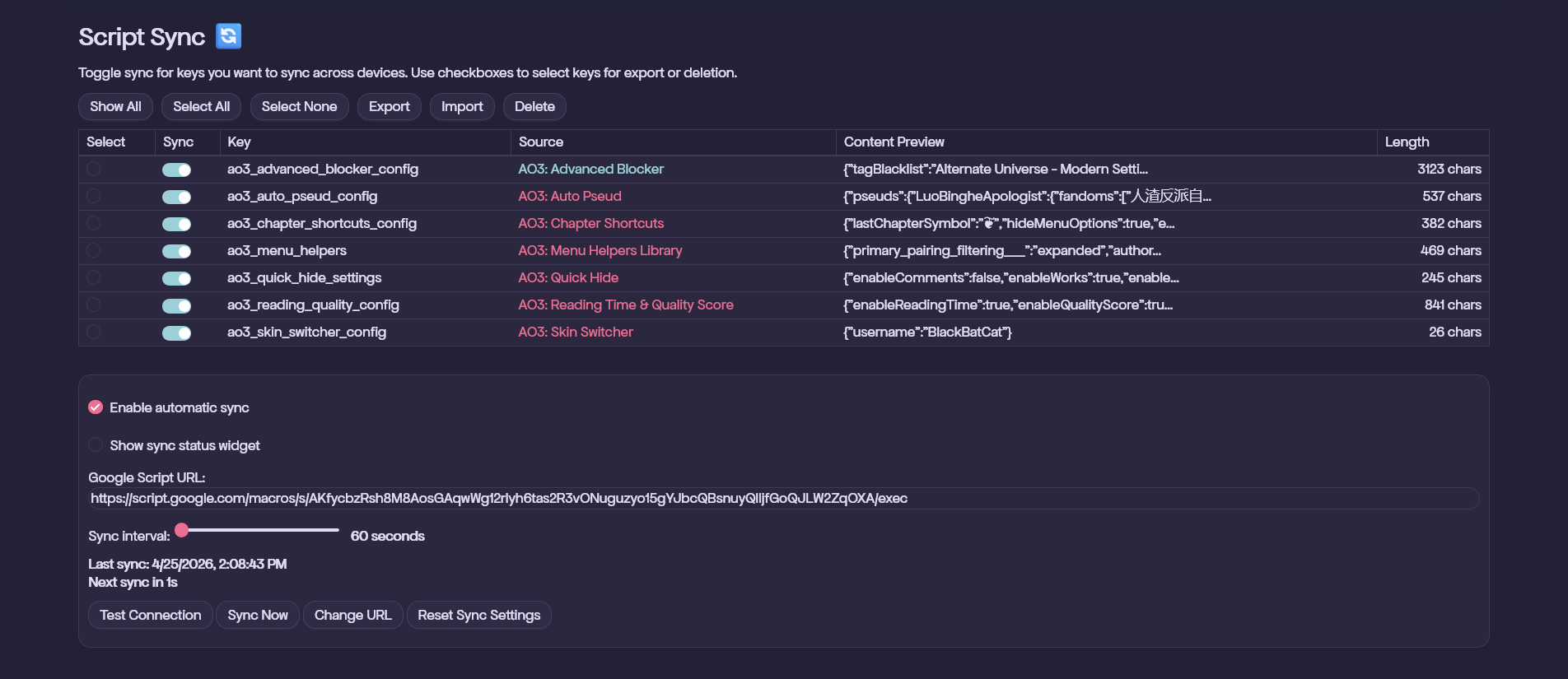
Sync any AO3 userscript's data and settings across multiple devices using Google Sheets as the storage backend. Also view, export, import, and delete data stored by any userscript.

✨ Features

  • Universal Sync – Works with any AO3 userscript that uses localStorage.
  • Selective Syncing – Choose exactly which localStorage keys to sync.
  • Automatic Updates – Configure sync intervals (default: 60 seconds).
  • Visual Feedback – Floating widget shows sync status and countdown.
  • Multi-Device – Seamlessly sync across unlimited devices.
  • Data Management – View, export, import, and delete data stored by any userscript.
  • Free – Uses free Google Sheets as storage (no server costs).
  • Privacy – Your data stays in your Google account.

AO3: Script Sync


🎯 Use Cases

Perfect for syncing data from:


📋 How to Use

⚠️ Important for Chromium-based browsers: If you're using Chrome, Brave, Vivaldi, or Microsoft Edge on PC, an extra activation step is required. Follow these instructions.

1. Install the Userscript

Install AO3: Script Sync with a userscript manager:

2. Copy the Template Google Sheet

👉 Click here to make a copy

This creates your own copy with all the Apps Script code pre-configured.

3. Deploy as Web App

  1. In your copied sheet: Extensions → Apps Script
  2. Click Deploy → New deployment, then select Web app as the deployment type
  3. Set "Execute as: Me" and "Who has access: Anyone", then click Deploy
  4. In the resulting window, copy the link at the bottom — this is your deployment URL

4. Configure the Script

🚨 Important: Initialize on the device that holds your most up-to-date userscript data. For example, if your phone has your most recent Advanced Blocker config, run the steps below on your phone first.

  1. On the AO3 homepage, click Userscripts → Script Sync
  2. Select the localStorage keys you want to sync
  3. Paste your deployment URL into the Google Script URL field and click Test Connection
  4. If the connection is successful, click Initialize — you're all set! 🎉

To set up on additional devices: Just install the script, enter the same Google Script URL, and press Initialize.

For TamperMonkey users: If you get the following window, press Always allow. If you press the wrong option, the window should reappear if you press Test Connection again.
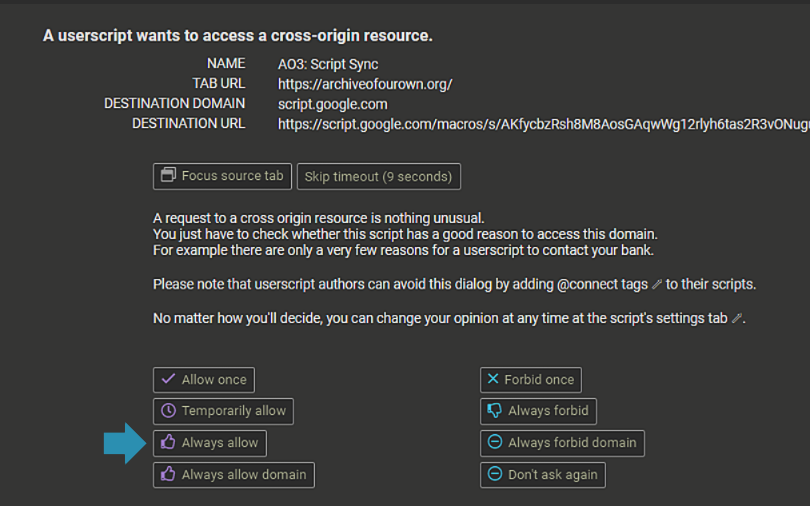
Tampermonkey Permissions


🐛 FAQ & Troubleshooting

Which device should I initialize on first?

Initialize on the device with your most up-to-date data. The first device uploads its local data to the sheet; additional devices download from it.

Connection test fails

  • Verify URL format: https://script.google.com/macros/s/.../exec
  • Check deployment settings: "Who has access" must be Anyone
  • Try opening the URL in a browser with ?action=ping appended — you should see a JSON response, not an error page
  • Check the Tampermonkey permissions note above. If the permissions window doesn't reappear, delete and reinstall the script

I toggled sync off for a key. Is the data still on the Google Sheet?

Yes. Toggling sync off just stops syncing — it doesn't delete anything from the sheet. Re-enable it anytime and the data will still be there.

I re-enabled sync for a key after making local changes. Which version wins?

Your local data wins. When you re-enable a key, Script Sync queues your local value for upload with the current timestamp, which is newer than what's on the sheet. Note: if you also made changes on another device while sync was off here, re-enabling on this device will overwrite those. Script Sync doesn't merge — it's last-write-wins.

Does the Delete button remove data from the Google Sheet?

No. Delete only removes data from your browser's local storage. The sheet is untouched, and if sync is still enabled for that key, the next sync will restore it from the sheet. To remove data from the sheet, delete the row directly in Google Sheets.

Does "Reset Sync Settings" wipe my Google Sheet?

No. It only clears Script Sync's configuration from your browser (URL, selected keys, sync state). Your sheet and all its data are untouched. You'll need to re-enter your URL and re-initialize to reconnect.

How do I completely remove a script's data from my device and the Google Sheet?

The Delete button only clears local storage — it won't touch the sheet. To remove data everywhere:

  1. Toggle sync off for the key in the Script Sync UI — this stops it from syncing back down
  2. Select the key's checkbox and click Delete — removes it from your browser's local storage
  3. Open your Google Sheet directly, go to the Storage tab, and delete the row for that key

Step 3 requires going into Google Sheets manually, as there's no in-script option to delete data from the sheet.

How do I merge data from two devices (e.g. combine two blocklists)?

Script Sync doesn't have a built-in merge tool. To do it manually:

  1. Use Export on both devices to download their data as JSON files
  2. Merge the two files in a text editor or JSON editor
  3. Use Import on either device to import the merged file — it will automatically upload to the sheet

🙌 Credits

Big thanks to:


📜 Check Out My Other Scripts