Greasy Fork 还支持 简体中文。

AO3: Site Wizard

Make AO3 easier to read: customize fonts and sizes, set site colors, adjust work reader margins, fix spacing issues, and configure text alignment preferences.

You will need to install an extension such as Tampermonkey, Greasemonkey or Violentmonkey to install this script.

You will need to install an extension such as Tampermonkey to install this script.

You will need to install an extension such as Tampermonkey or Violentmonkey to install this script.

You will need to install an extension such as Tampermonkey or Userscripts to install this script.

You will need to install an extension such as Tampermonkey to install this script.

You will need to install a user script manager extension to install this script.

(I already have a user script manager, let me install it!)

You will need to install an extension such as Stylus to install this style.

You will need to install an extension such as Stylus to install this style.

You will need to install an extension such as Stylus to install this style.

You will need to install a user style manager extension to install this style.

You will need to install a user style manager extension to install this style.

You will need to install a user style manager extension to install this style.

(I already have a user style manager, let me install it!)

Author
BlackBatCat
Daily installs
3
Total installs
912
Ratings
4 0 0
Version
3.6.1
Created
2025-09-24
Updated
2026-04-24
Size
43.7 KB
License
MIT
Applies to

AO3: Site Wizard

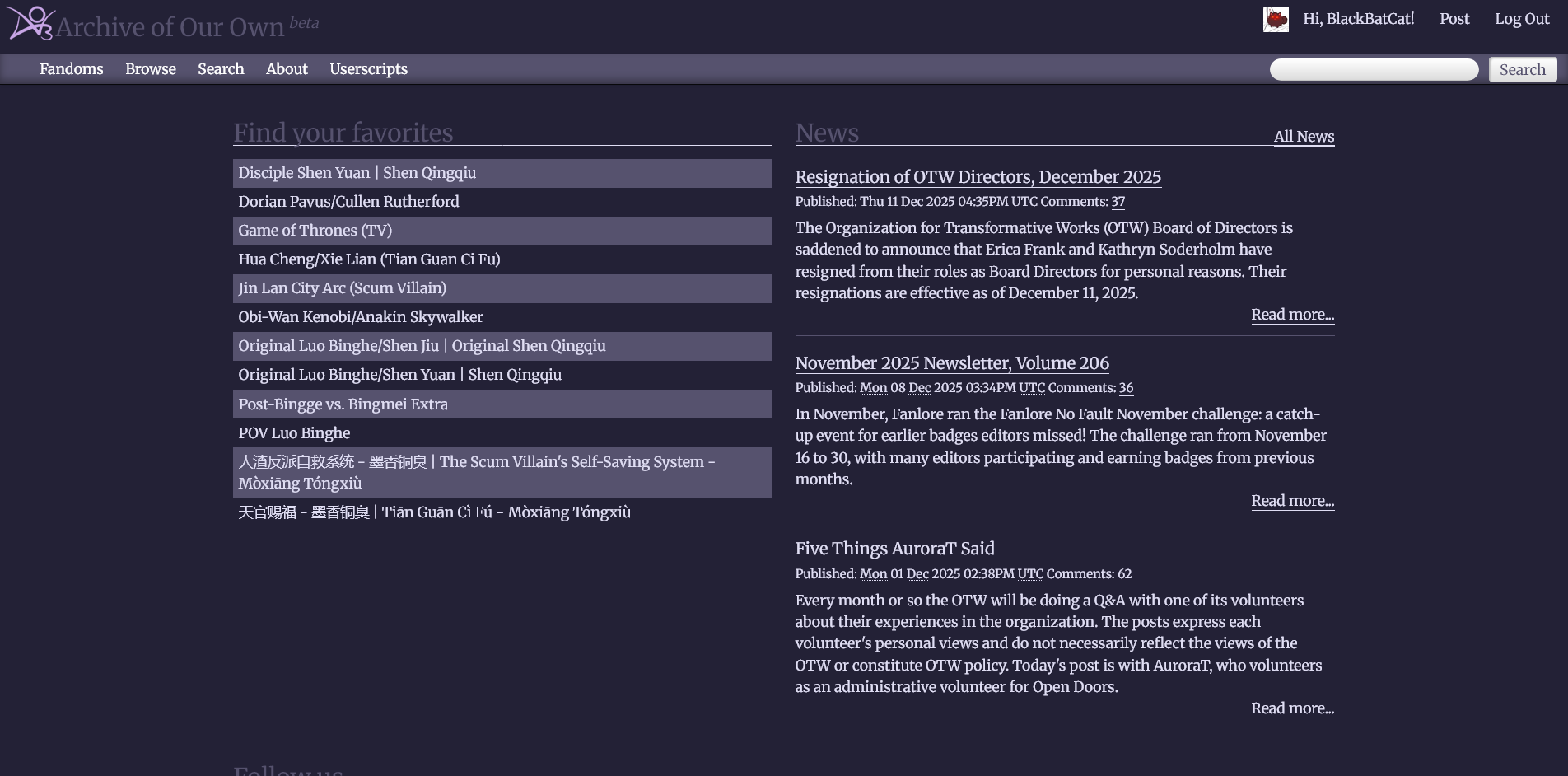
Transform your AO3 reading experience with complete font and layout control:
  • ✏️ Site-Wide Font Customization — Change fonts, sizes, and weights across the entire site.
  • 🎨 Custom Colors — Personalize site colors and the AO3 logo appearance.
  • 📖 Work-Specific Formatting — Customize how stories appear with width, alignment, and spacing controls.
  • 🎯 Element-Specific Fonts — Set different fonts for headers, code blocks, and other elements.
  • ✨ Automatic Spacing Fix — Eliminates excessive paragraph spacing in poorly formatted works.

✨ Features

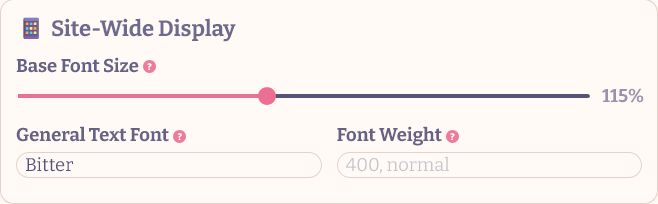
Site-Wide Formatting

Alt text

  • Base Font Size: Adjust the overall text size for the entire site (50-200% of browser default).
  • General Text Font: Set a custom font family for most site text.
  • Font Weight: Control the boldness of general text across AO3.

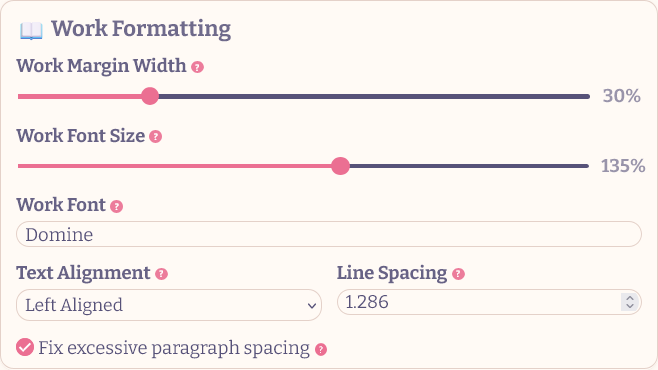
Work Formatting

Alt text

  • Work Margin Width: Control how wide the work reader appears (10-100% of viewport).
  • Font Size: Scale work text relative to your site base size (50-200%).
  • Text Alignment: Choose between left-aligned, justified, or right-aligned text.
  • Line Spacing: Fine-tune vertical space between paragraphs with decimal precision.
  • Work Font: Set a specific font family just for reading stories.
  • Spacing Fix: Automatically removes unnecessary blank lines and excessive spacing.

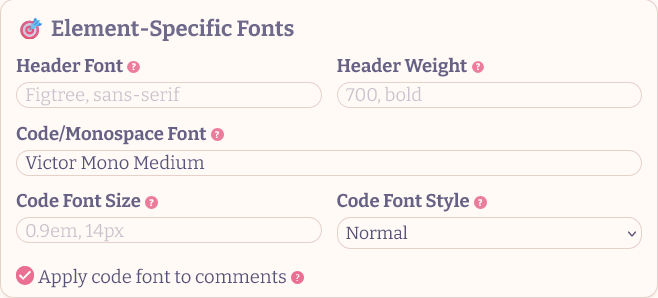
Element-Specific Formatting

Alt text

  • Header Font: Customize fonts for all headings (H1-H6).
  • Header Weight: Control header text boldness separately from body text.
  • Code/Monospace Font: Set fonts for code blocks and preformatted text.
  • Code Font Style: Choose normal or italic styling for code elements.
  • Code Font Size: Scale code text relative to surrounding content.
  • Apply code font to comments: Use code font on all textareas.

Colors

Color Settings

  • Background Color: Customize the background color of the entire site.
  • Text Color: Change the default text color across AO3.
  • Header Color: Set a custom color for headers and primary UI elements.
  • Accent Color: Control the color of accent elements like borders and highlights.
  • Logo Color: Transform the AO3 logo color using CSS filters. Use the color filter generator to create custom filter values for any desired logo color.

⚙️ How to Use

⚠️ Important for Chromium-based browsers: If you're using Chrome, Brave, Vivaldi, or Microsoft Edge on PC, an extra activation step is required. Follow these instructions.. For the Tampermonkey iOS app, see this video.

  1. Install with a userscript manager:
  2. Click Userscripts in the header menu, then Site Wizard to customize.
  3. Adjust fonts, sizes, alignment, and spacing to your preference.
  4. Click Save — changes persist across browser sessions.

💾 Backup Your Settings

  • Export Settings: Download your configuration as a timestamped JSON file for backup or transfer.
  • Import Settings: Upload a previously exported JSON file to restore your customizations.
  • Reset to Defaults: Restore all settings to their original values.

💡 Using AO3 on multiple devices? Check out AO3: Script Sync — it automatically syncs your settings and data across devices using Google Sheets.


🎨 Customization Tips

Font Recommendations

📜 Check Out My Other Scripts